
Quanser Mechatronics Sensors Trainer USB SD Settings Page
The Quanser Mechatronics Sensors Trainer USB SD Settings Page is used to change global settings for the device, such as the brightness of the display, the alignment of the display and the plot colour theme. The main settings page is depicted below:
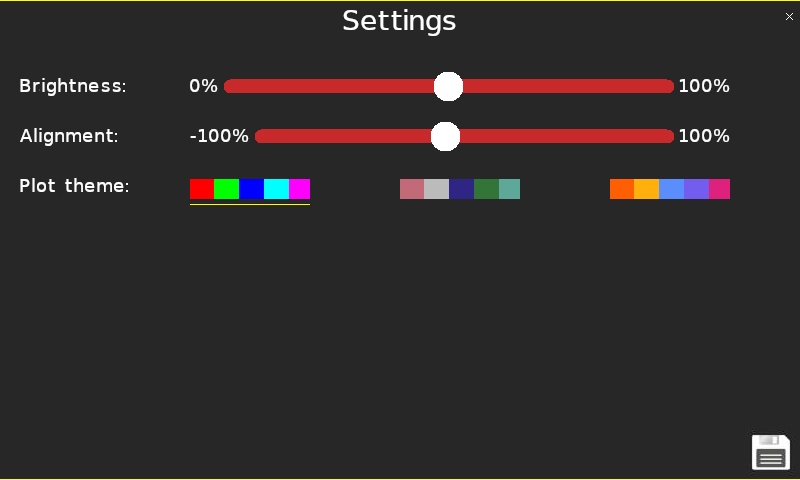
The brightness of the display may be controlled using the Brightness slider. A brightness of 0% will be the minimum brightness without going black. A brightness of 100% will provide the maximum brightness of the display. Lowering the brightness saves energy, which results in longer battery life when powering the device from a battery-based phone charger.
The vertical alignment of the display may be adjusted using the Alignment slider. The alignment should be set such that there is a thin yellow line at the very top of the screen and at the bottom of the screen when the main settings screen is displayed. Improper alignment can result in pixels at the top of the screen wrapping around to the bottom of the screen or vice versa. The alignment should be set in the factory and should not need adjusting.
The final setting is the Plot theme, which determines the colour scheme used for plots. Changing the plot theme can be particularly helpful for those suffering from colour blindness and the last two plot themes are chosen accordingly.
To save these global settings in non-volatile memory, tap on the disk icon in the bottom, right corner of the screen. This will preserve the settings even when the device is powered down and then powered back up.
To go back to the Sensors page, tap on the close button in the top, right corner of the page.
Copyright ©2026 Quanser Inc. This page was generated 2026-05-13. Submit feedback to Quanser about this page.
Link to this page.