
Quanser Mechatronics Sensors Trainer USB SD Card Page
The Quanser Mechatronics Sensors Trainer USB SD Card Page allows the user to browse or format an SD card placed into the SD card slot on the side of the device (beside the USB C connector). The SD card page is pictured below when there is no SD card inserted in the slot:
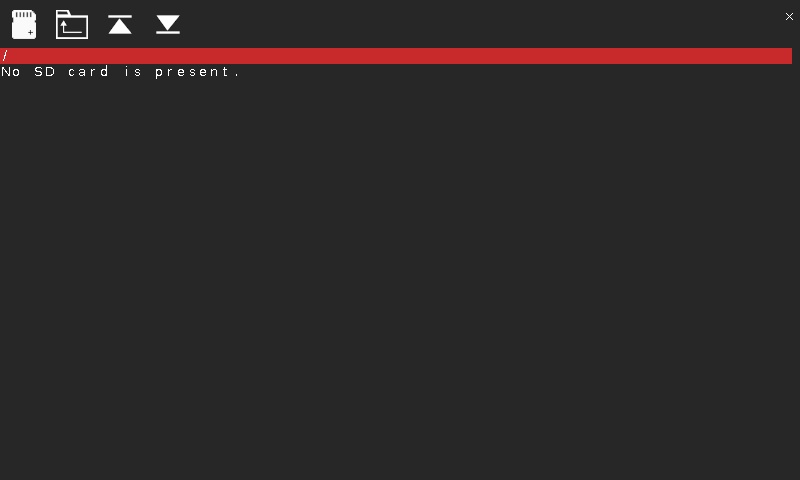
In this case, the message "There is no SD card present." will be shown on the screen. A similar message will be displayed if an SD card is inserted that is not correctly formatted. Note that SD cards formatted with the exFAT file system will not be recognized (due to licensing restrictions). The FAT32 file system should be used instead.
To format an SD card, insert the SD card into the slot and tap the button that looks like an SD card with a + on it. The icon is meant to represent a "new SD card". A warning message will appear warning that the entire contents of the disk will be erased if you proceed with formatting. The warning is depicted below:
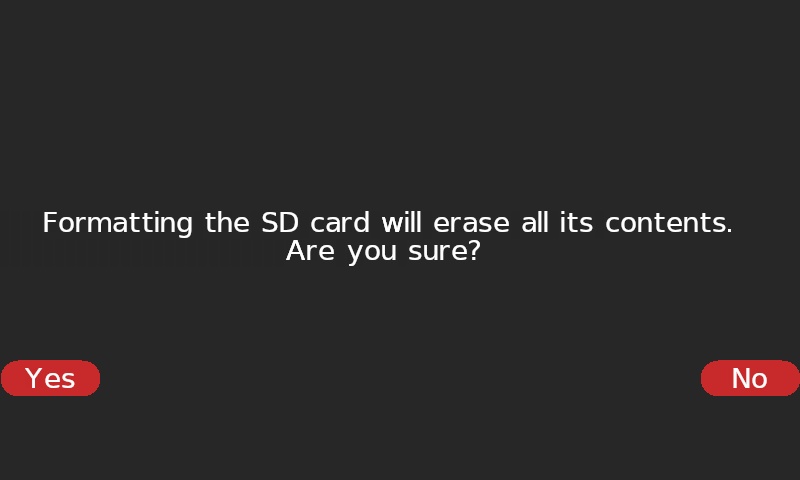
Tap Yes to proceed with formatting or No to cancel the formatting operation. If you tap Yes, a message will be displayed indicating that the formatting is proceeding. Do not remove the SD card until the formatting is complete. When the formatting is complete, the display will return to the regular SD card page showing the empty contents of the SD card. The SD card will be formatted with the FAT32 file system. SD cards are not limited to 32 GB in size. For example, a 128 GB SD card can be formatted. Large SD cards formatted as FAT32 are recognized by recent versions of Windows 11. For earlier versions of Windows, stick to 32 GB cards or less.
Once a properly formatted SD card is inserted (or a card has just been formatted), the display will change to show the contents of the SD card. An example display is shown below:
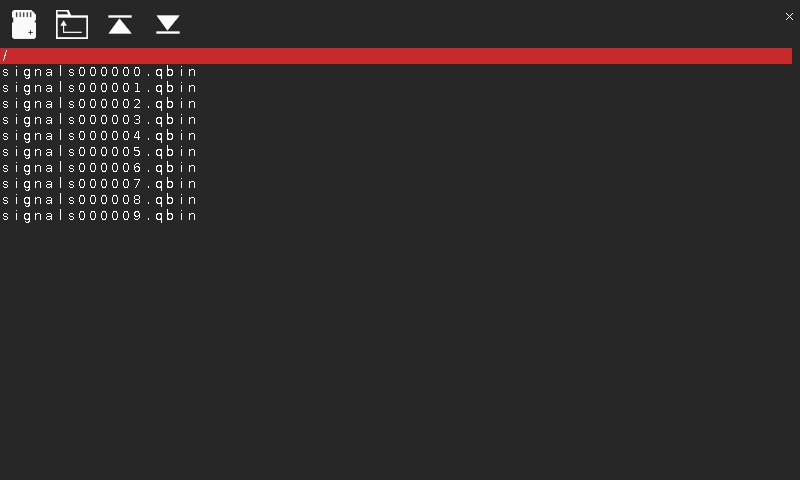
In this example, the QBIN files contain data that was recorded when the device was plugged into a charger instead of a host computer and the record (REC) button was pressed.
Folders are indicated by a trailing slash at the end of the folder name. For example, in the screenshot below, the overlays folder is shown as "overlays/".
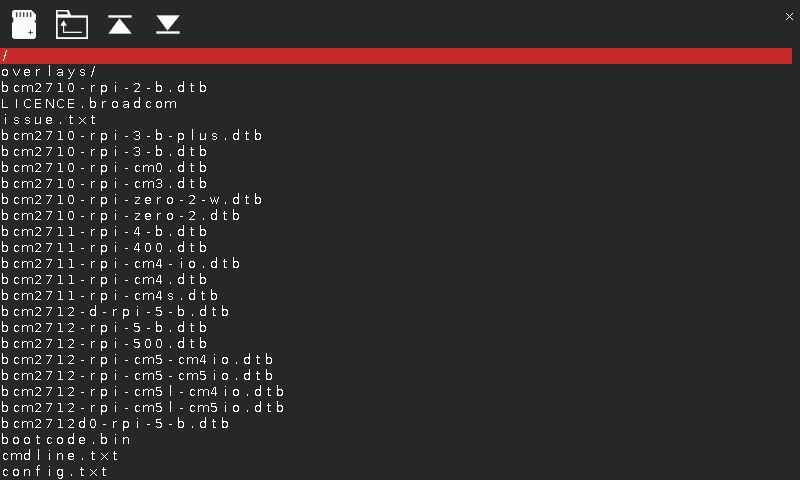
Tapping on a folder name will cause it to browse that folder. The name of the current folder will be shown in the red bar. For example, when tapping on the overlays folder in the above example, the following screen is displayed:
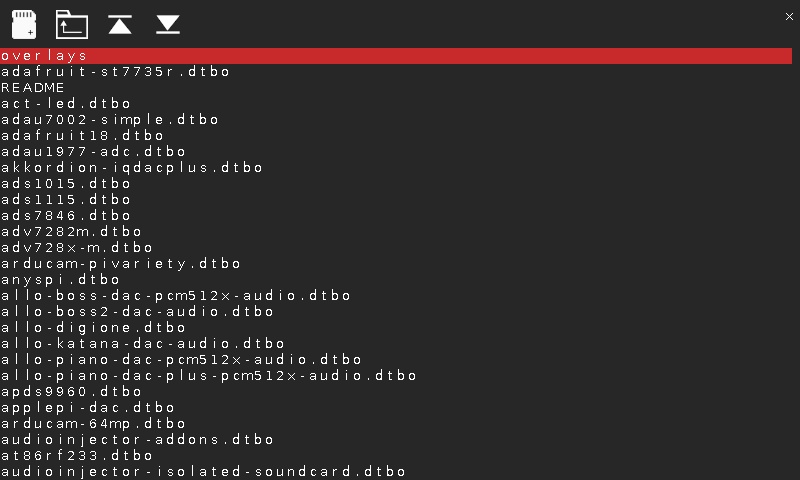
To return to the parent directory, press the "Up folder" button which is the second button. It looks like a folder with an upward pointing arrow on it.
If the number of files or folders in the directory is longer than can be displayed on a single screen, then it is possible to scroll up and down among the list of files or folders by pressing and holding one finger on the screen and sliding your finger up and down.
To jump to the top of the list, tap the third button, which looks like an upward pointing arrow/track button. To jump to the bottom of the list, tap the fourth button, which looks like a downward pointing arrow/track button.
To go back to the Sensors page, tap on the close button in the top, right corner of the page.
Copyright ©2026 Quanser Inc. This page was generated 2026-05-13. Submit feedback to Quanser about this page.
Link to this page.