
Quanser Mechatronics Sensors Trainer USB Radar Page
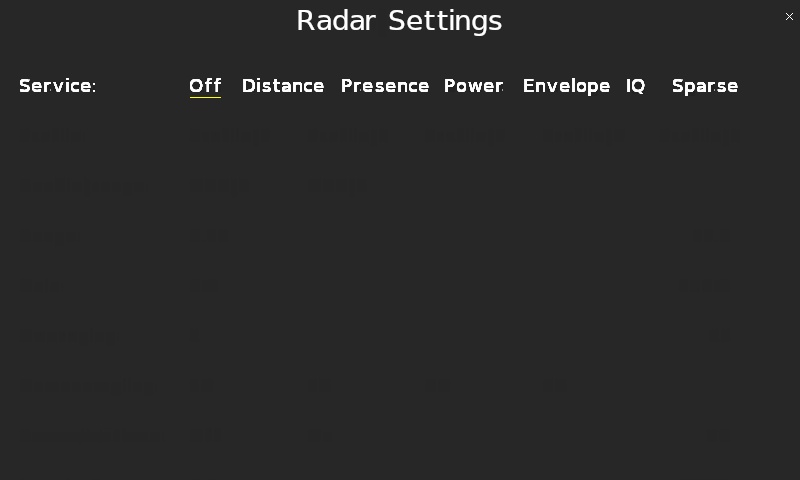
The Quanser Mechatronics Sensors Trainer USB Radar Page plots the output of the A111-001-T&R radar sensor. However, this sensor is the most complicated of all the sensors because it supports multiple services. In particular, it supports a distance service, a presence service, a power service, an envelope service, an IQ service and a sparse service, or being off. By default, this sensor is off because it is higher power. In this case, the plot looks empty as shown below:
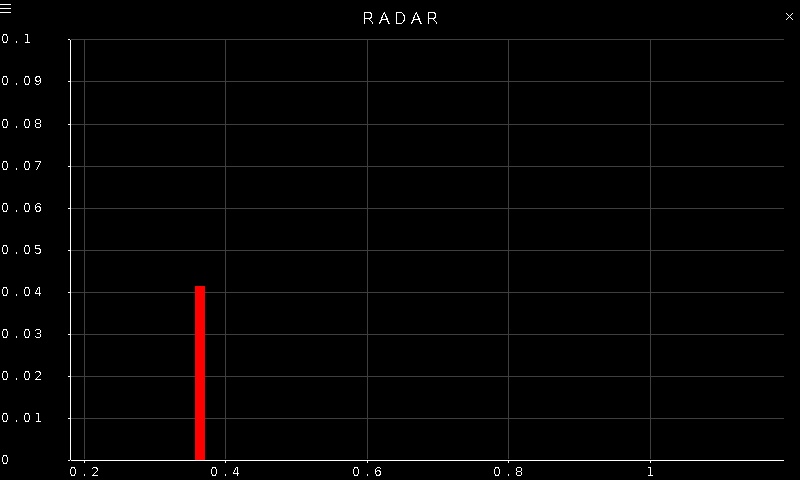
When the distance service is active, it plots the intensity of the signal from any detected object on the Y axis as a bar, with the distance in meters from the object along the X axis. Distances are detected by comparing the envelope sweep of the radar to a threshold and identifying one or more peaks in the sweep corresponding to objects in front of the radar. Refer to the Acconeer documentation on the distance detector for more details.
Note that the radar sensor has a relatively wide field of view and operates best when the cone is used. A more intuitive response can be received when first experimenting with the sensor by pointing it at a wall. A sample plot of the distance is pictured below:
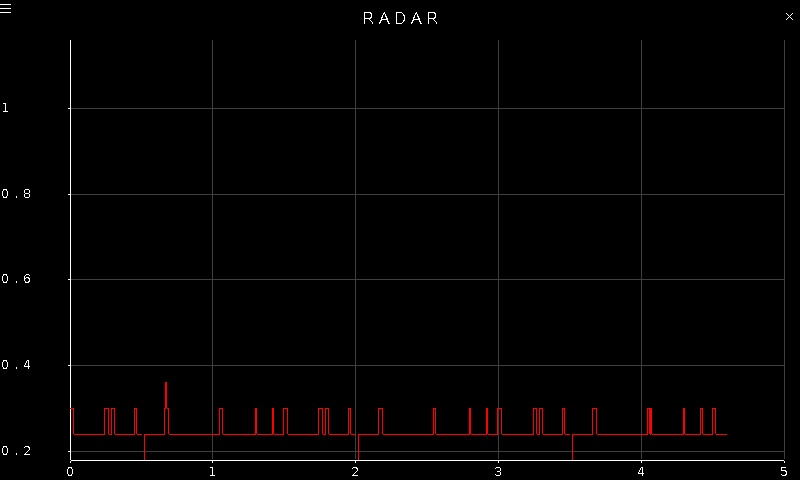
When the presence service is active, it plots a presence score versus distance. The presence service detects changes in the environment over time based on data from sparse sweeps. Refer to the Acconeer documentation on the presence detector for more details. A sample plot of the presence score is illustrated below:
When the power service is active, it plots intensity versus distance. The power service is like a fast, crude version of the envelope service. It provides data based on the received signal energy at different distances from the radar sensor. Refer to the Acconeer documentation on the power bins service for more details. A sample plot for the power service is shown below:
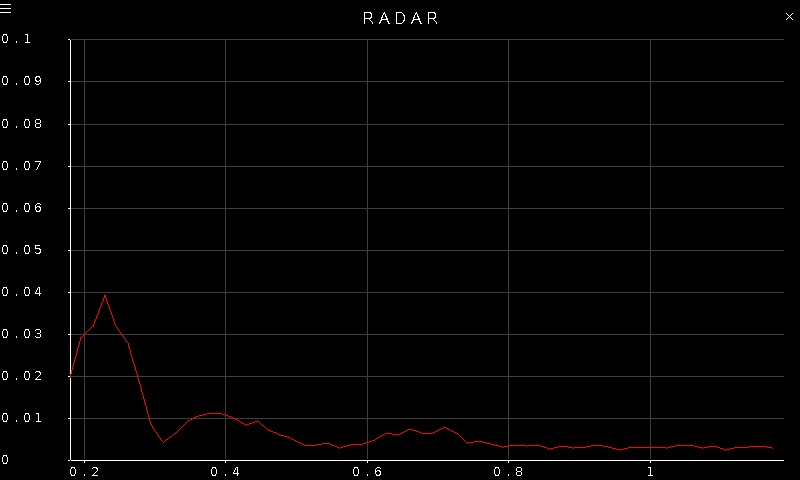
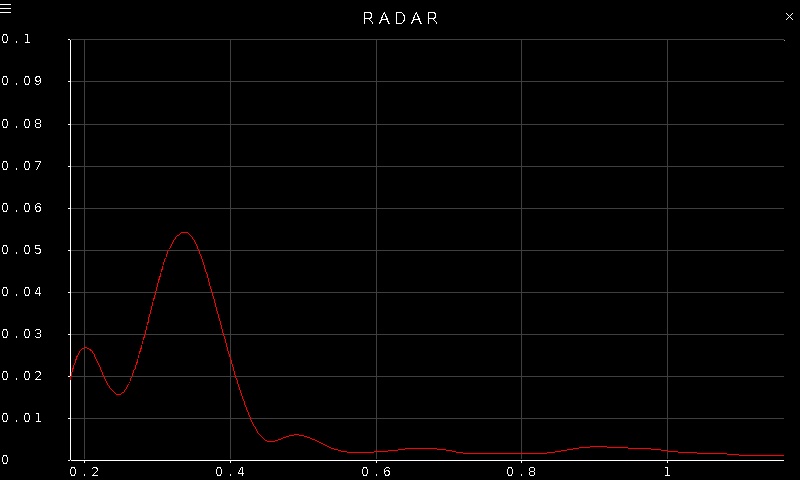
When the envelope service is active, it plots intensity versus distance with more resolution than the power service. It provides data based on the received signal energy at different distances from the radar sensor, but does so by transmitting a sequence of radar pulses and then measuring the energy content of the returning echoes from the pulses, for a set of time delays from the pulse transmission. Refer to the Acconeer documentation on the envelope service for more details. A sample plot for the envelope service is depicted below:
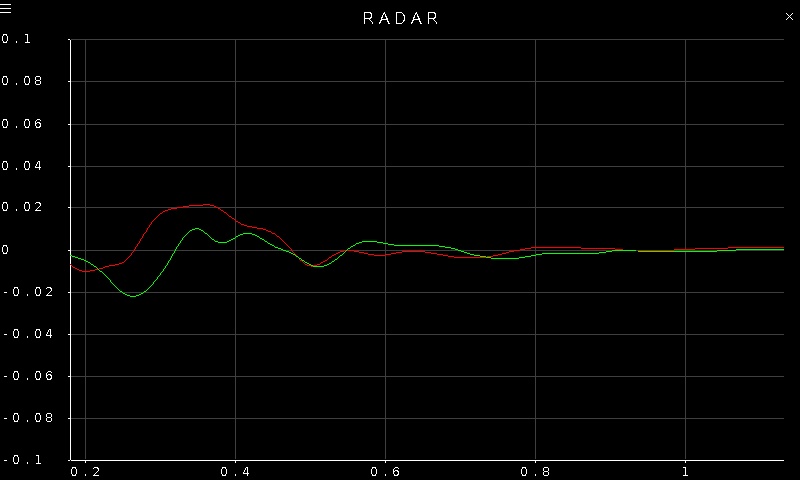
When the IQ service is active, it plots the in-phase and quadrature components of the radar signal. It is a representation of the raw signals that the transducer receives. It may be used to detect fine motion in a scene. Refer to the Acconeer documentation on the IQ service for more details. A sample plot is illustrated below, with the in-phase component in red and the quadrature component in green.
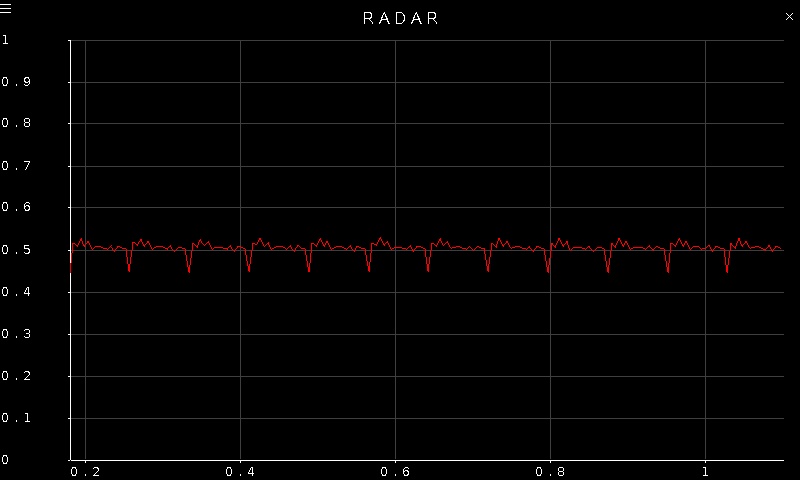
Finally, when the sparse service is active, it plots multiple sweeps of the intensity versus distance. It does so by sampling the incoming radar waves approximately every 6 cm. It is optimized for detecting moving objects. Refer to the Acconeer documentation on the sparse service for more details. A sample plot is pictured below, in which there are 12 sweeps. The number of sweeps is adjustable in the settings. Note that each sweep covers the full range of distance, so the X axis labels are really just a guide, in this case, to the distance range that has been selected.
To go back to the Sensors page, tap on the close button in the top, right corner of the page. To change the sensor parameters, tap on the hamburger menu in the top, left corner of the page. This will open the settings screen described in the section below, where the service may be configured, as well as many other parameters.
The plot axes are fixed but are adjusted according to the configured range and service.
Settings
Each service has a different combination of settings. Hence, once a service is selected, the parameters that are available will change according to the service chosen. Each section below describes the parameters for a different service.
The radar service to enable is configured via the Service parameter. Selecting Off will turn the radar sensor off. Picking any of the other service options will select that service.
After selecting the desired options for any particular service, tap the close button in the top, right of the page to apply the new settings and return to the plot.
Off Settings
The settings page when no service is selected is illustrated below. There are no other settings in this case.
Distance Settings
The settings page when the distance service is selected is illustrated below:
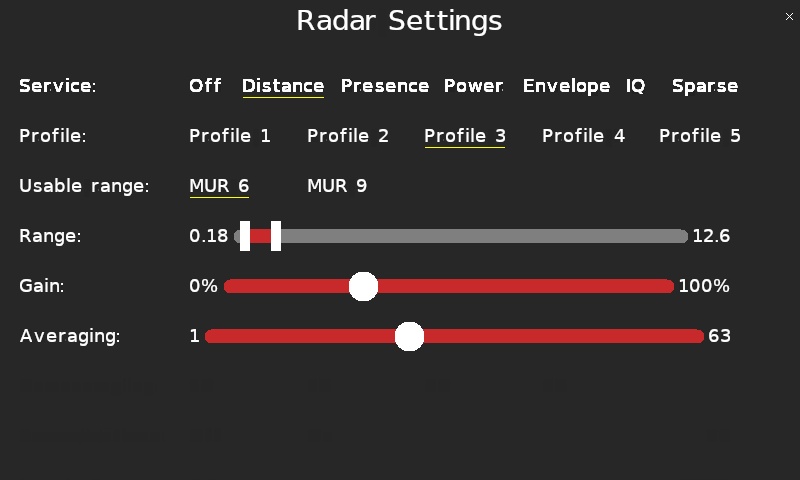
Each service supports five pulse length profiles: Profile 1 to Profile 5, ranging from shorter pulses that provide higher distance resolution to longer pulses that provide a higher signal to noise ratio but lower distance resolution. The Profile parameter allows the pulse profile to be selected.
The Usable range parameter determines the maximum unambiguous range (MUR) by changing the pulse repetition frequency of the radar system. A setting of MUR 6 results in maximum unambiguous range of 11.5 meters but the maximum allowable value for the range, in this case, will be 7.0 meters. Choosing MUR 9 results in a maximum unambiguous range of 17.3 meters but the maximum value allowed for the range will be 12.6 meters. Use MUR 6 unless the extra distance is actually needed.
The maximum unambiguous range parameter determines the maximum range, not the range over which objects are detected. The detection may be limited to a particular range so that outside of that range objects are ignored. This range is chosen using the dual thumb Range slider. The start of the range is determined by the first thumb and the end of the range is determined by the second thumb. Each thumb may be moved independently just like the thumb of a regular slider. The minimum starting distance is 0.18 meters and the maximum distance is 12.6 meters when MUR 9 is enabled. Otherwise it is 7 meters. Limit the range to only what you need because if the range is too large the radar may not produce any results because the combination of parameters will be regarded as invalid. Check the log if the radar does not produce any results.
The Gain parameter, also called the receiver gain, adjusts the gain of the amplifiers in the sensor. This parameter should be adjusted so that the ADC is not saturated but the signal is above the quantization noise. A value of 50% is a reasonable starting point.
The Averaging parameter, also known as the hardware accelerated average samples (HWAAS), is the number of samples that are averaged to obtain each data point. A higher number will increase the radar loop gain but then each sweep will take longer to acquire. The longer each sweep takes to acquire, the lower the update rate. A value between 1 and 63 samples may be selected.
Presence Settings
The settings page when the presence service is selected is illustrated below. There are actually more settings than can fit on one screen, so the first screen is shown below.
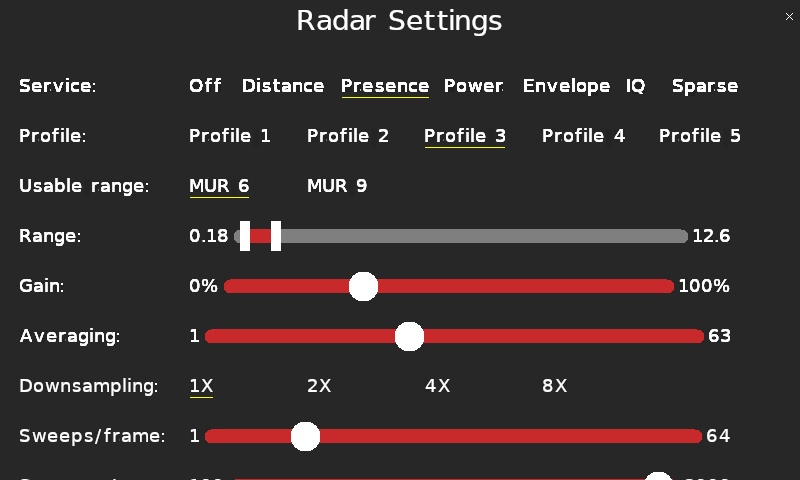
The presence service has similar settings to the distance service with some additional settings. Only the additional settings will be described here because the other settings are described above.
The Downsampling parameter determines whether there is any downsampling applied to the data. A value of 1X means no downsampling is applied. A value of 2X means that every other measurement is skipped, etc. Downsampling factors of 1X, 2X, 4X or 8X are allowed. Note that for the power, envelope and IQ services, a downsampling factor of 8X is not valid.
Each frame is a collection of sweeps over the selected distance range. The Sweep/frame parameter determines the number of sweeps per frame. A typical value is 16.
The rest of the settings for the presence service are shown below in the second screen for the settings page. The settings screen may be scrolled up or down by simply pressing and holding one's finger on the page and moving up or down.
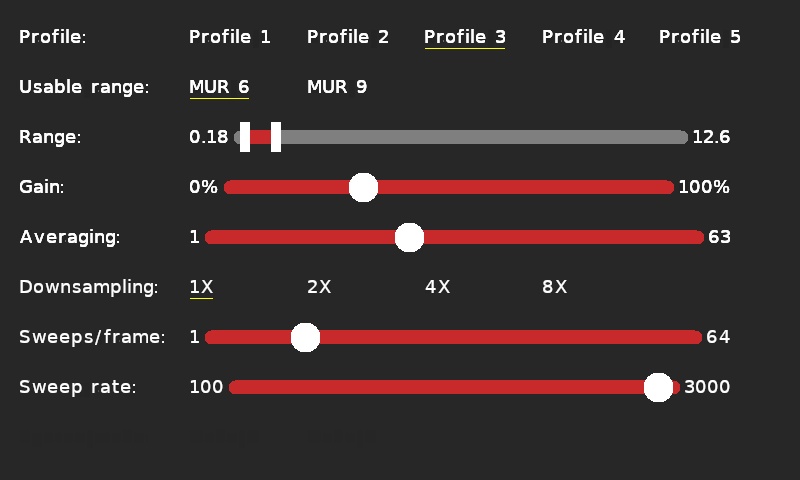
The final parameter for the presence service is the Sweep rate. This option determines the rate at which sweeps are performed. The sweep rate may be set between 100 and 3000 Hz. The maximum possible sweep rate is roughly inversely proportional to the number of depth points measured (which is affected by the range interval and downsampling factor), as well as to the hardware accelerated average samples. The maximum possible sweep rate also depends on the sampling mode. Sampling mode A is roughly 30% slower than mode B.
Power Settings
The settings page when the power service is selected is illustrated below. There are actually more settings than can fit on one screen, so the first screen is shown below.
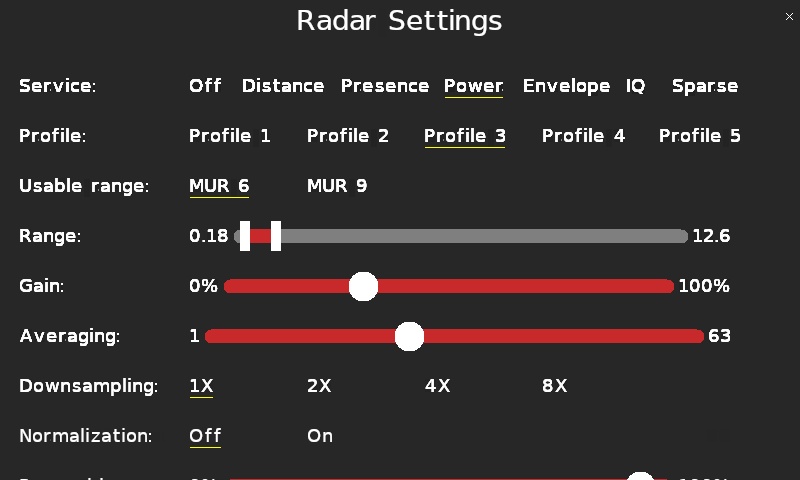
The power service has similar settings to the distance service with some additional settings. Only the additional settings will be described here because the other settings are described above.
When the Normalization parameter iwell this is 1. thing where our media is very good 5. PM s enabled, by selecting On, the radar sweeps are normalized to have similar amplitude independent of the receiver gain or hardware accelerated average samples. The normalization results in a more consistent signal over different temperatures and sensors.
The rest of the settings for the power service are shown below in the second screen for the settings page. The settings screen may be scrolled up or down by simply pressing and holding one's finger on the page and moving up or down.
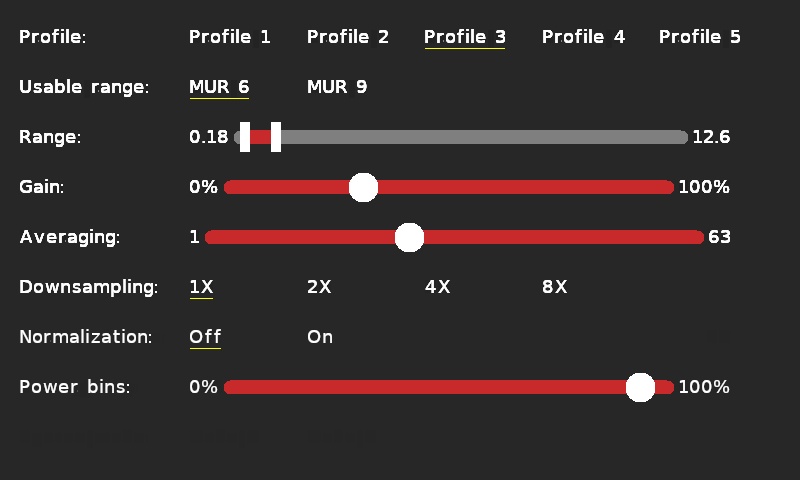
The final parameter for the power service is the Power bins. This option determines the number of bins that are used to create the amplitude versus distance histogram. More bins will result in finer plot, while fewer bins will result in a coarser plot. The parameter is expressed as a percentage of the maximum allowable number of power bins based on the range interval chosen.
Envelope Settings
The settings page when the envelope service is selected is illustrated below. There are actually more settings than can fit on one screen, so the first screen is shown below.
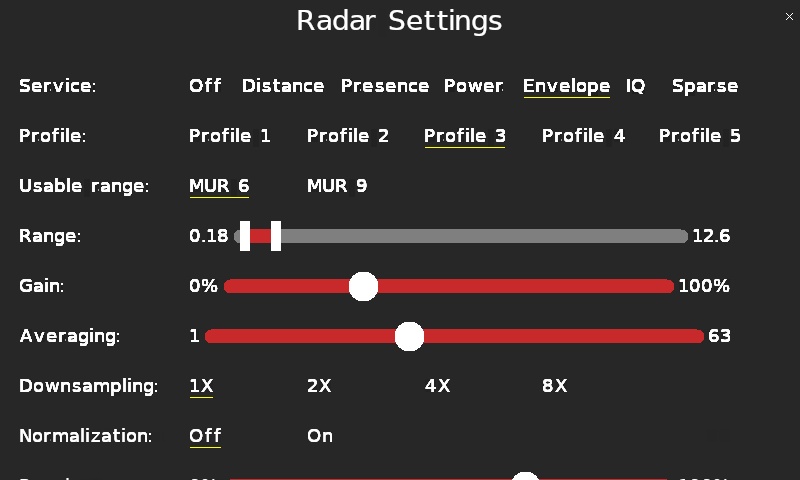
The envelope service has similar settings to the distance and power services with some additional settings. Only the additional settings will be described here because the other settings are described above. This first screen is the same as the power service. The additional settings are visible on the second page of the envelope settings screen which is pictured below. The settings screen may be scrolled up or down by simply pressing and holding one's finger on the page and moving up or down.
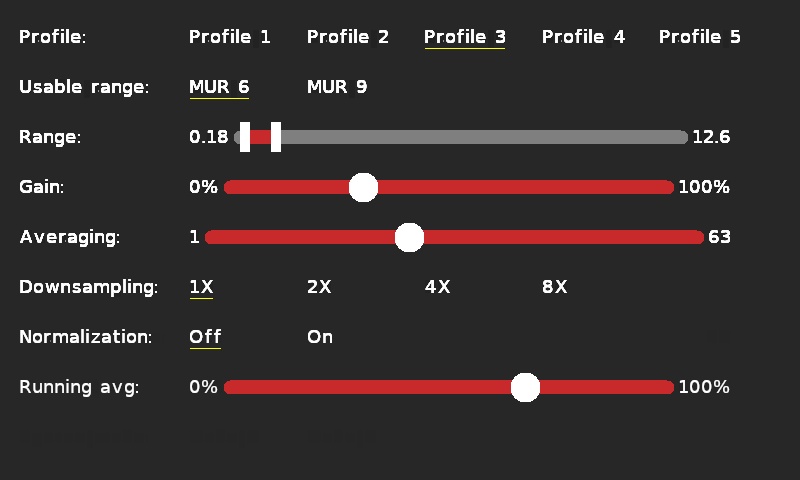
The Running avg parameter denotes the running average. The Envelope service uses a running average over time to filter the signal and increase the signal to noise ratio (SNR). The running average is expressed as a percentage where a higher value indicates more filtering. The filter is a standard exponential smoothening filter.
IQ Settings
The settings page when the IQ service is selected is illustrated below:
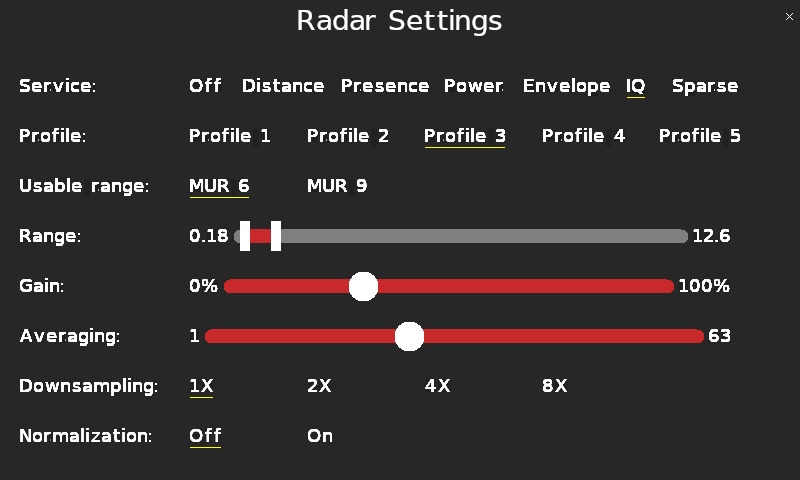
Since these settings are in common with the power service, refer to the power service (and distance) settings above for a description of the options.
Sparse Settings
The settings page when the sparse service is selected is illustrated below. There are actually more settings than can fit on one screen, so the first screen is shown below.
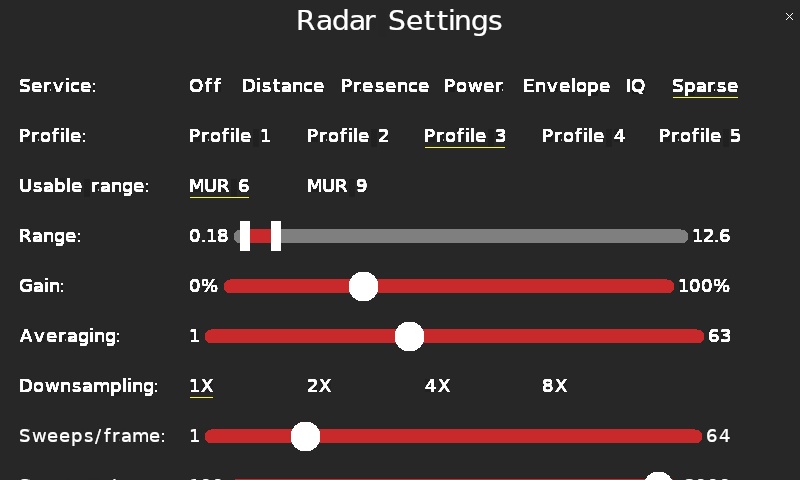
The sparse service has similar settings to the distance and presence services with some additional settings. Only the additional settings will be described here because the other settings are described above. This first screen is the same as the presence service. The additional settings are visible on the second page of the sparse settings screen which is pictured below. The settings screen may be scrolled up or down by simply pressing and holding one's finger on the page and moving up or down.
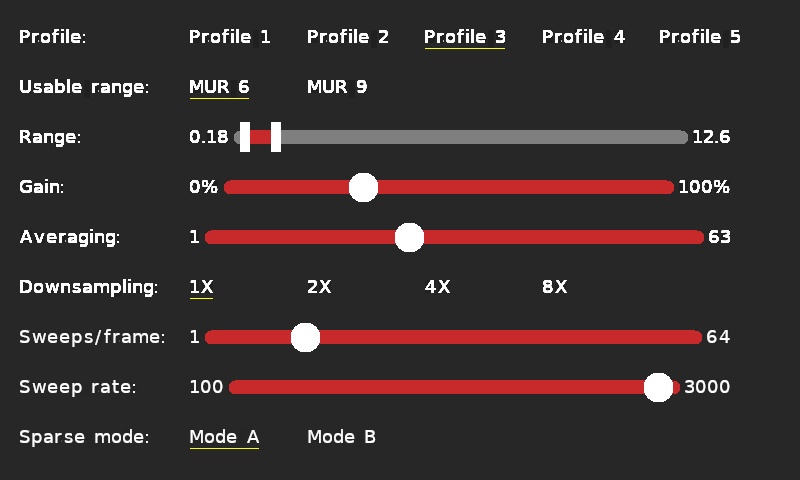
The Sweep rate parameter is common with the presence service and will not be described here.
The Sparse mode parameter is unique to the sparse service and indicates the mode to be used. There are two modes to choose from: mode A and mode B. Mode A is optimized for maximum independence of the depth points to give a higher depth resolution. This makes it more suitable for gesture recognition and speed measurements. Mode B is optimized for maximum signal to noise ratio over time. It is suitable for detecting small movements over long ranges. The improvement in the signal to noise ratio compared to mode A is about 3 dB.
Copyright ©2026 Quanser Inc. This page was generated 2026-05-13. Submit feedback to Quanser about this page.
Link to this page.