
Quanser Mechatronics Sensors Trainer USB Gamepad Page
When the Quanser Mechatronics Sensors Trainer is connected to a host PC, one of the many devices it shows up as is an Xbox 360 game controller. Xbox 360 game controllers have many buttons and sliders as well as a point of view hat. The Quanser Mechatronics Sensors Trainer only has one physical joystick and two physical buttons. In order to provide a full complement of the Xbox 360 controls, the Quanser Mechatronics Sensors Trainer USB Gamepad Page provides these controls virtually using the touch screen. This page is displayed below:
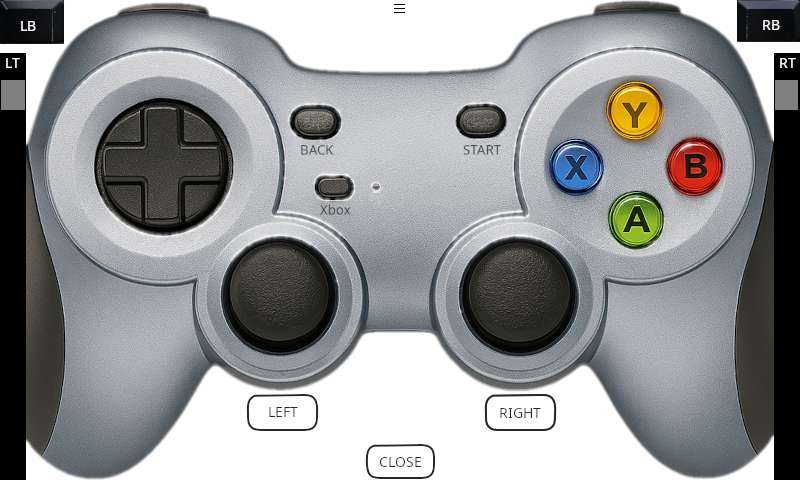
To go back to the Sensors page, tap on the Close button in the bottom, center of the page. To change the gamepad parameters, tap on the hamburger menu in the top, center of the page. Note the change in location from the typical close button and hamburger menu. The hamburger menu will open the settings screen described in the section below.
To move a virtual joystick, press and hold your finger on the centre of the joystick and then slide your finger around to move the joystick. As long as you do not release your finger, you will be controlling the joystick wherever you move on the screen. Note that by default, the left joystick will not be controllable from the virtual interface because it is tied to the physical joystick of the device. However this can be changed from the settings screen.
To move the point of view hat, press and hold your finger on the point of view hat, and slide it around the edge to change its value. As long as you do not release your finger you will be controlling the point of view hat.
Any of the buttons may be pressed by tapping on the button. The LEFT and RIGHT buttons below the joysticks represent the joystick buttons themselves. The LB and RB buttons represent the left bumper and right bumper. All the buttons shown are functional, including the A, B, X, Y, LB, RB, BACK, START, Xbox, LEFT and RIGHT buttons.
The LT and RT sliders represent the left and right triggers. Change a trigger value by pressing and holding on the trigger thumb and moving it up and down with your finger. As soon as you release your finger the trigger will return to 0% (the top).
Note that there is no visual feedback when using the virtual controls, other than the triggers.
Settings
The settings page is illustrated below:
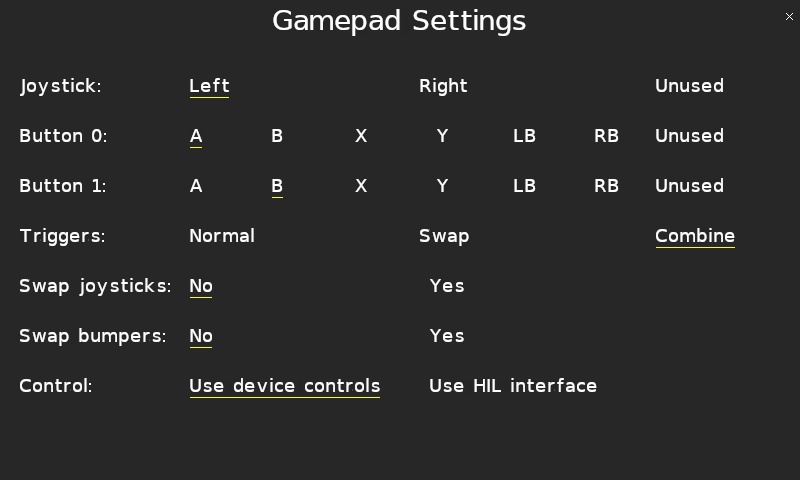
The physical joystick may be tied to the left joystick of the Xbox 360 game controller or the right joystick, or it can be left unused. These options are controlled by the Joystick parameter. If the physical joystick is tied to the left joystick then the virtual left joystick on the gamepad page will not be functional to avoid a conflict between the two. Likewise, if the physical joystick is tied to the right joystick then the virtual right joystick on the gamepad page will not be functional. If the Joystick parameter is set to Unused then the physical joystick is not used at all and both virtual joysticks will be functional on the gamepad page.
The Button 0 parameter indicates which Xbox 360 control is associated with the physical Button 0 (the left button). By default it is associated with the A button.
The Button 1 parameter indicates which Xbox 360 control is associated with the physical Button 1 (the right button). By default it is associated with the B button.
The Triggers parameter determines how the left (LT) and right (RT) trigger sliders are used. When this parameter is set to Normal, then each slider controls the respective trigger. When this parameter is set to Swap, then the LT slider controls the right trigger and the RT slider controls the left trigger. When this parameter is set to Combine, the left and right sliders are combined into a single LT trigger where each slider controls half the range. This is the default because it is suitable for the Windows "Setup USB game controller" properties dialog but may not be suitable for other applications.
The Swap joysticks setting allows the left and right joysticks to be swapped so that whichever joystick is configured as the "left" joystick above will be sent as the right joystick control, and vice versa.
The Swap bumpers setting allows the left and right bumper buttons to be swapped so that the LB button controls the right bumper and the RB button controls the left bumper.
The Control setting indicates whether the Xbox 360 game controller is being controlled from the physical and virtual gamepad controls on the device or is being controlled through the HIL interface from a host PC. The Quanser Mechatronics Sensors Trainer allows the host PC to override any or all of the Xbox 360 controls presented by the device. Hence, the host PC can be used to programmatically control the gamepad, which opens up the possibility of programmatically controlling games or applications that support an Xbox 360 game controller. For example, the IMU of the device could then be used to navigate a virtual environment provided by an application that supports the Xbox 360.
Tap the close button in the top, right of the page to apply the new settings and return to the gamepad page.
Copyright ©2026 Quanser Inc. This page was generated 2026-05-13. Submit feedback to Quanser about this page.
Link to this page.